New application note: Inductor Measured vs. Simulated

RFIC Inductor Measured vs. Simulated Troubleshooting

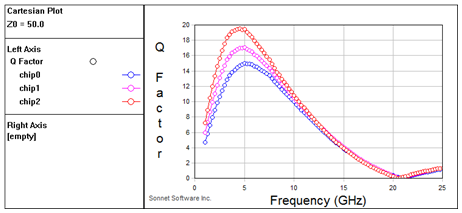
[two-thirds] The purpose of this document is to assist you with resolving possible differences between simulated RFIC inductor results and values obtained from the design kit or from measurement.

Inductor lumped model

This document is based on extensive practical experience. The author has worked for many years in RFIC inductor modelling, and worked closely with the modelling and measurement groups of different foundries.

[box type=info]RFIC Inductor Measured vs Simulated (PDF, 540kB)[/box]

Updated 31. Jan 2012:
Added description how to calculate differential L and differential Q
from 2-port and 3-port simulations. Below is the Sonnet equation file.

[box type=info]Differential inductor equations Ldiff and Qdiff (ZIP, 1kB) [/box]

[/two-thirds][third] [/third]


Empire XCcell 3D EM: Faster on CPUs than others on GPUs

EMPIRE XCcel 5.51 released


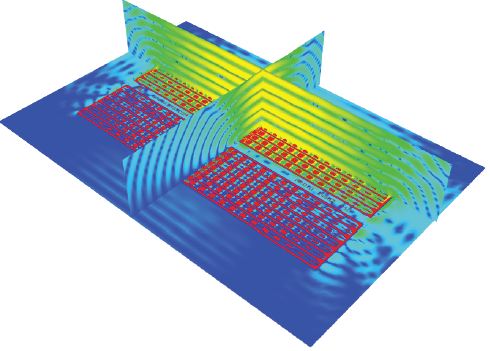
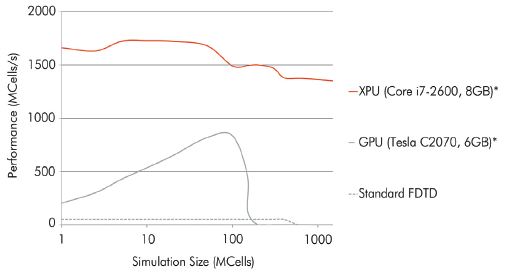
[two-thirds]Recent benchmark results again demonstrated the unbelievable speed of EMPIRE XCcel. EMPIRE features the XPU technology which is a unique software driven workflow among CPUs – invented at IMST. As shown here, EMPIRE’s performance on a single PC is much higher than using a graphic card solution.[/two-thirds] [third] [/third]


[two-thirds]

In addition the performance is nearly independent from the structure size. In contrast to solutions which make use of graphic card accelerators (GPU) EMPIRE XCcel allows the usage of the complete built-in memory. On a 64 bit operation system up to 192 GByte can be used today with the full simulation performance.

For even larger sizes EMPIRE XCcel’s recently developed Cluster solution is available and proven to yield perfromances which scale linearily with number of clustered PCs. The new 5.51 release is even further optimised to solve huge structures hundreds of wavelength in size.[/two-thirds] [third] [/third]

New features include:

  • SAR compliance to standard P1528
  • Active impedance calculation
  • Tensoric Debye materials
  • User requested 2D plot enhancements
  • Far field coverage display
  • Accelerations for pre- and postprocessing
  • Improved import/export filters (gerber, dxf), export of SAT format
  • Periodic field output synchronization

[two-thirds]*12 port Multifeed, cubic growth, including losses, PGA, observation; >400 MCells: 2xXeon 5580, 48 GB
XPU is an innovative proven software controlled workflow among CPUs – invented at IMST[/two-thirds] [third] [/third]

Sonnet 13.54 Tips & Tricks

Tips & Tricks

Sonnet 13.54 was just released, and includes some new capabilities that we want to discuss here.

Via array merging

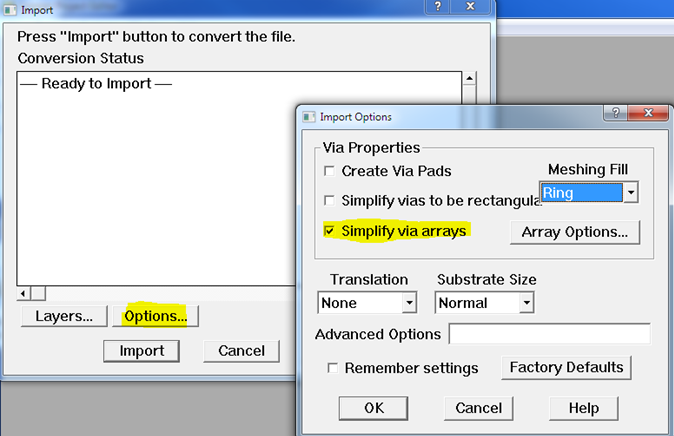
You might know that Sonnet 13 can merge via arrays during import, creating one big via that is more efficient to simulate. This feature is available for the Cadence interface, Agilent ADS interface and AWR Microwave office interface,  as well as DXF and GDSII import.

Via merge in GDSII import

Via merge in GDSII import

Unfortunately, via arrays in existing projects can not be merged in the Sonnet editor, but there is a workaround: in the <SONNET_DIR>/bin directory, there is a commandline program viamerge.exe that can modify an existing simulation model and merge the vias.

If viamerge.exe is called with a project name as the only parameter, it will read that model and overwrite it with the modified version. If you supply a second filename, then the original file is untouched and the modified file is written into the second file.

viamerge mergeme.son
viamerge input.son output.son

In the next section, we will learn how this command can be called from the Sonnet menu, using the new customized menu feature.

[divider]

Custom menu

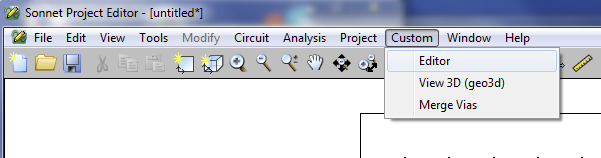
In Sonnet 12.54, a new “customized menu” feature was introduced. This enables the user to define an additional, customized menu entry in xgeom and other Sonnet tools.

Customized menu in xgeom

Customized menu in xgeom (click to view full size)

Users can add one customized menu entry for each of the Sonnet tools, with customized commands or calls to external programs. This can be useful to send Sonnet projects to home-made simulation cluster scripts, run external pre- or postprecessing tools on the current project, and much more.

To define the custom menu shown above, the custom menu has been enabled for the xgeom to0l by adding the folling line to the [xgeom] section of the sonnet.ini file:

CustomMenu=$SONNET_APPDATA_DIR\data\custom_menu.xml

This points to the file custom_menu.xml, which we have created in the Sonnet application data directory C:\ProgramData\Sonnet Software\13.54

<?xml version=”1.0″ standalone=”yes”?>
<custom_menu name=”Custom”>

<menu_item name=”Editor”>
<exe> c:\windows\system32\notepad.exe </exe>
<arguments>  $PROJECT </arguments>
</menu_item>

<menu_item name=”Merge Vias”>
<exe>    $SONNET_DIR\bin\viamerge.exe  </exe>
<arguments>$PROJECT merged.son</arguments>
</menu_item>

</custom_menu>

This is a simple file, with two commands to call external programs. The first command opens the currently open Sonnet project in the notepad editor that is part of the Windows operating system. As you can see, the commandline via merging utility viamerge.exe is included as another custom command, with the currently open Sonnet project as the first parameter (=input file) and the fixed filename merged.son as the second parameter (=output file).

The full, official documentation of the custom menu feature is available here: Sonnet_Custom_Menu_R13

[divider]

Display equations for transformers

We have created some equations for the Sonnet data display, to assist you with the analysis of transformers.
These equations can be used with transformers where the primary is connected with ports 1/-1 and the secondary is connected with ports 2/-2. The equations can not be used with transformers analyzed in 4-port configuration.

transfomer with differential ports


The equation file includes the following equations:

  • Coupling factor k
  • Transformer ratio n
  • Inductance with other ports open
  • Resistance with other ports open
  • Q factor with other ports open

These equations are required because the standard Q factor, Inductance1/2 and Resistance1/2 equations are calculated from Y parameters, which means that other ports are shorted. This is not useful for our two-port transfomer case, so we have defined our own transformer equations.

Download transformer_equations file (ZIP)

Please refer to the Sonnet User’s Guide on how to load equation files.

[divider]

Technology utility to create matl files

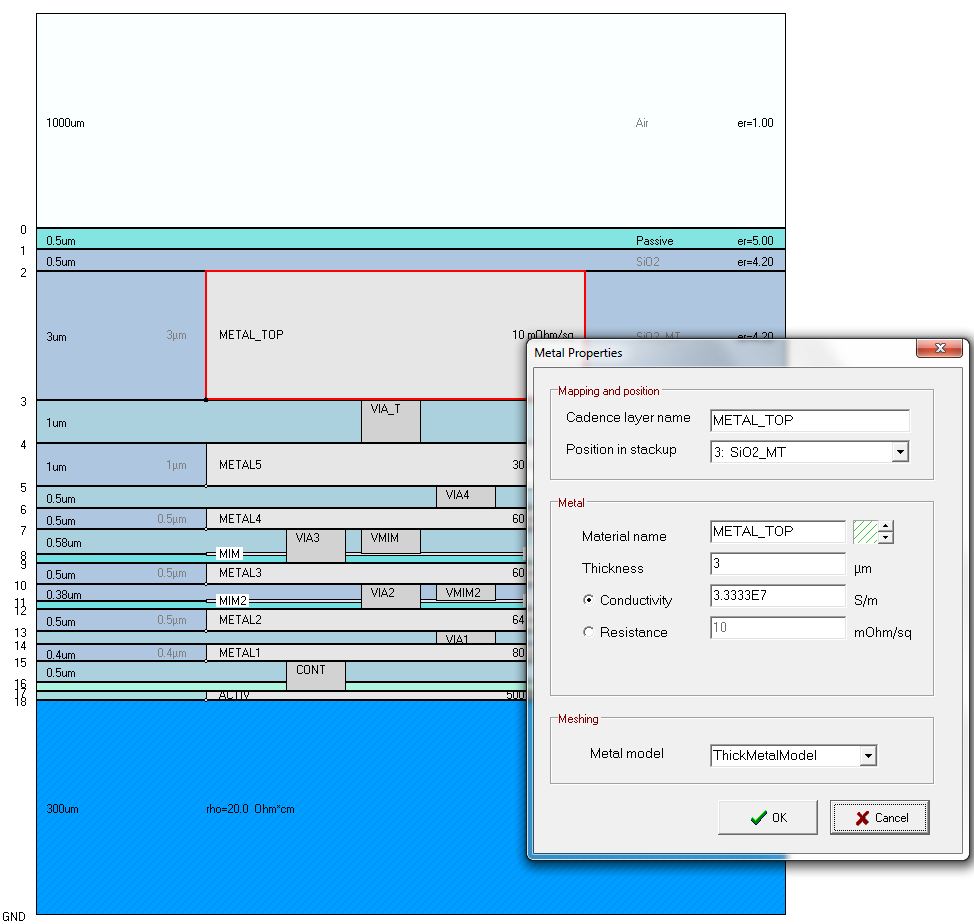
Mühlhaus GmbH has created a new material file utility to help RFIC users with the setup of complex stackups.

At the present time, this tool writes out *.matl files for the Cadence and Agilent interface. You can define stackups starting from an empty file, or import existing files in Sonnet *.matl format and Agilent *.slm format.

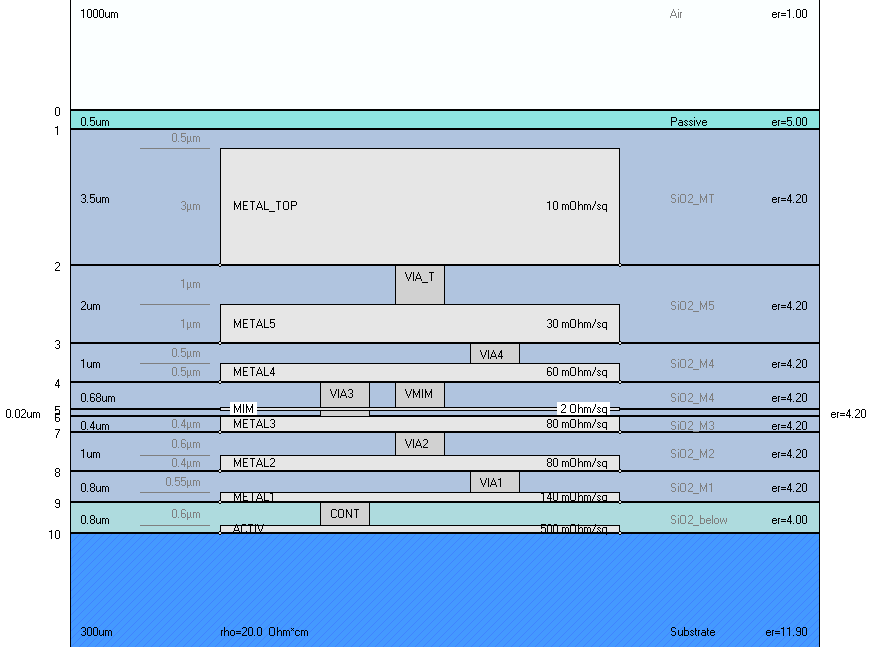
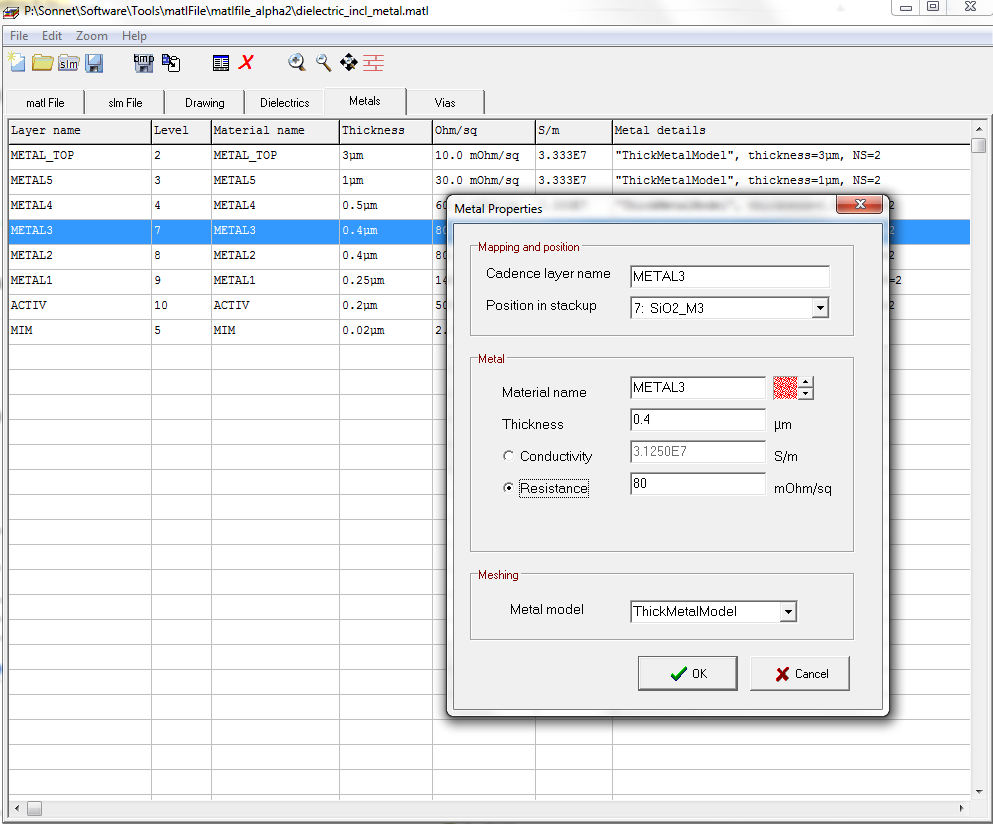
The stackup can be visually inspected in different views. Material data input can be in Sonnet format (thickness and conductivity) or the data as typically found in foundry data sheets (thickness and ohm/square).

Material file tool

Material file tool - cross section view (click for full size)

Material file tool - metal property view

Material file tool - metal property view (click for full size)

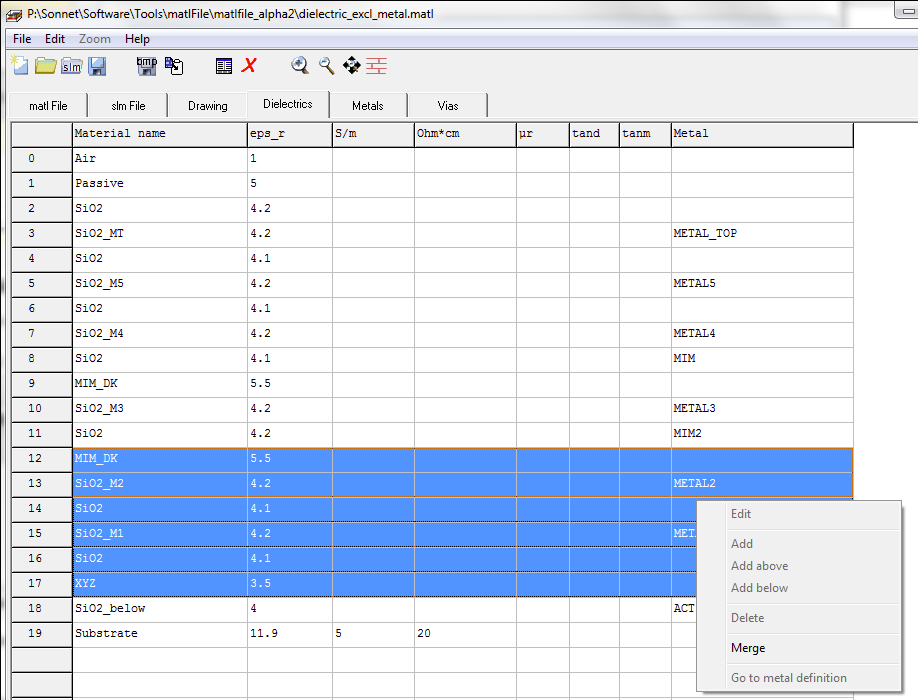
Dielectric layers also can be merged, creating a new dielectric with the total height and the effective epsilon.

Merging of dielectrics

Merging of dielectrics (click for full size)

The tool is available to Mühlhaus Consulting & Software GmbH customers at no extra cost. Please contact us to receive the files.


Sonnet at RadioTecC Berlin

[two-thirds]

EM analysis of printed circuit boards

Sonnet EM analysis of printed circuit boards will be demonstrated at the
RadioTecC Berlin 2011 conference and exhibition.

Visit us at the RadioTecC exhibition (free entry):
26.-27. October 2011, 9:00-17:00

Presentation “EM analysis of printed circuit boards” at the conference
26. October 2011, 11:00 -12:00

[box type=success]Save the conference fee and get your FREE ticket for the complete conference: pre-register through us [/box]

Conference and exhibition location:

WISTA-Gebäude Berlin Adlershof
Adlershof con.vent.
Rudower Chaussee 17
12489 Berlin Adlershof

Conference and exhibition program (PDF)

RadioTecC2011 Presentation: EM Analysis of RF Printed Circuits Boards

[/two-thirds]

[third] RadioTecC logo[/third]

Sonnet 13.54 now available

Sonnet 13.54

In July 2011, Sonnet had released version 13.52.
Now, version 13.54 is available which fixes some issues reported for version 13.52.

These issues are fixed in Sonnet 13.54:

  • fixed: New schematic view for Cadence Virtuoso IC5.141 configured incorrectly
  • fixed: 64-bit Linux Analysis Engine is slower when using Conformal Mesh
  • fixed: Physical size of component is displayed incorrectly in Project Editor
  • fixed: No vias are mapped in the .matl file when importing a PDK Technology into the Cadence Interface.
  • fixed: Ideal component is difficult to select in the Project Editor
  • fixed: Cannot create a SonnetEM cell view in the Cadence Virtuoso Interface from only a section of a layout
  • fixed: Exiting Cadence Virtuoso also shuts down any running Sonnet programs launched from the Interface
  • fixed: Merge planar polygons during simplification option does not work in the Cadence, AWR and ADS interface
  • fixed: Solver Information dialog box in AWR Microwave Office Interface does not update correctly when switching tabs
  • fixed: Opening a 3D view in the Project Editor or the Response Viewer on a Redhat 6 OS crashes program


[box type=info]Release note on the Sonnet USA website
[/box]

[box type=info]Download information[/box]

Sonnet at IHP Tutorial 2011

Sonnet at IHP tutorial “Design Kits for THz Technologies”

[two-thirds]

Sonnet EM analysis of integrated inductors will be demonstrated at the
“IHP Design Kits for THz Technologies” tutorial.

22.-23. September 2011

IHP GmbH
Innovations for High Performance Microelectronics
Leibniz-Institut für innovative Mikroelektronik

Im Technologiepark 25
D-15236 Frankfurt (Oder)
Germany

[/two-thirds][third] [/third]

http://www.ihp-microelectronics.com/events/workshop2011/index.html

New tutorial videos and support documents

New videos

[two-thirds]

Sonnet has added several new “Tips and Hints” videos to explain new features introduced in Release 13. These videos are available from the Sonnet USA website. [go to video…]

We have added one new tutorial video to demonstrate the RFIC inductor analysis flow with GDSII data. [go to video…]
[/two-thirds]  [third] [/third]

New application notes

[two-thirds]

Two new application notes have been added to our support documents:


Defining a stackup for Sonnet RFIC analysis

The purpose of this document is to assist you in defining the dielectric layers and metal definitions for Sonnet, based on the technology cross section provided by the semiconductor foundry. The side effects of thick metal vs. thin metal stackup are discussed.  [read more …]

[/two-thirds]  [third] [/third]

Understanding Ports for RFIC Analysis

[two-thirds] In this document, we will discuss the use of Sonnet ports for RFIC. It will be shown how to use groups of co-calibrated ports, and avoid parasitic coupling between ports. The use of global (box) ground vs. floating (local) ground is explained for RFIC use.  [read more …]

[/two-thirds]  [third] [/third]

Sonnet Professional 13.52 Known Issues

Last Update: 20. September 2011

Host-ID for node locked license with dongle on 64bit Linux

Issue: There is a known issue with node locked (not floating) licenses on 64bit Linux that are locked to a dongle. After installing the dongle driver from the Sonnet taskbar, the dongle is shown in the Admin > HostID list and some parts of Sonnet, like the xgeom editor, can be used. However, the analysis engine em complains about incorrect Host-ID.

“The hostid of this system does not match the hostid specified in the license file.”

The issue is caused by a dongle driver that does not fully support the Linux 64bit environment.
It was confirmed for dongles of type FLEXnet ID-9, but could also affect other Sonnet dongles.

Solution: Contact us to discuss alternative licensing methods.

[divider]

lmgrd: No such file or directory  (Linux)

Issue: Depending on the system setup, you might get the following error when you try start the license manager with sflexnet start

Starting FLEXnet
ERROR: License manager did not start
nohup: ignoring input
nohup: failed to run command `/home/sonnet/sonnet1352/arch/linux86/flexnet/lmgrd’: No such file or directory

although lmgrd does exist in the correct location. The issue is caused by a missing Linux library.

Solution: Use the package manager of your Linux system to install the lsb core library.
For Suse Linux, the name of the library is “lsb” and can be installed from YaST.
For Ubuntu, do sudo apt-get install lsb-core

[divider]

Newly introduced schematic view for Cadence IC5.141 gives wrong answer

[box type=error]fixed in Sonnet 13.54[/box]

Issue: The newly introduced schematic “schematic-sonnet-bbspice-spectre” gives incorrect results when used in Cadence IC5.141. However, it does work properly for IC6.14.

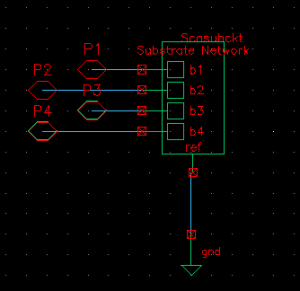
Release 13 of Sonnet’s Cadence Virtuoso Interface introduced a new schematic “schematic-sonnet-bbspice-spectre” that is generated for the broadband spice model and utilizes the scasubckt instance from Cadence, as shown below.
(click on screenshot to see full size)

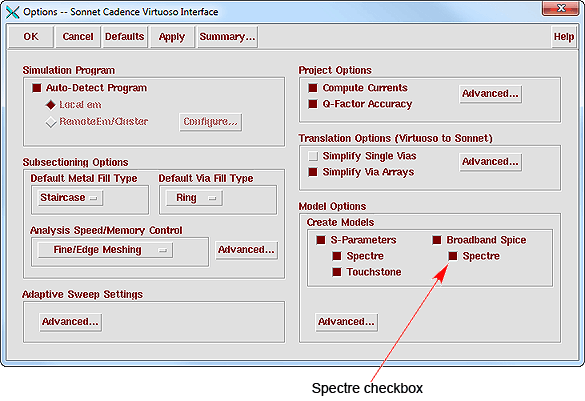
This schematic is created when you select the Spectre checkbox under Broadband Spice in the Model Options section of the Options dialog box in Sonnet’s Cadence Virtuoso Interface and appears in your cell as “schematic-sonnet-bbspice-spectre.”
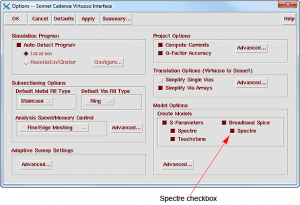
(click on screenshot to see full size)

In IC5.141, when Spectre netlists the schematic, it ignores the connection of the reference pin of the scasubckt instance. This results in wrong answers in Sonnet 13.52. Note that the schematic is configured correctly for IC6.14.

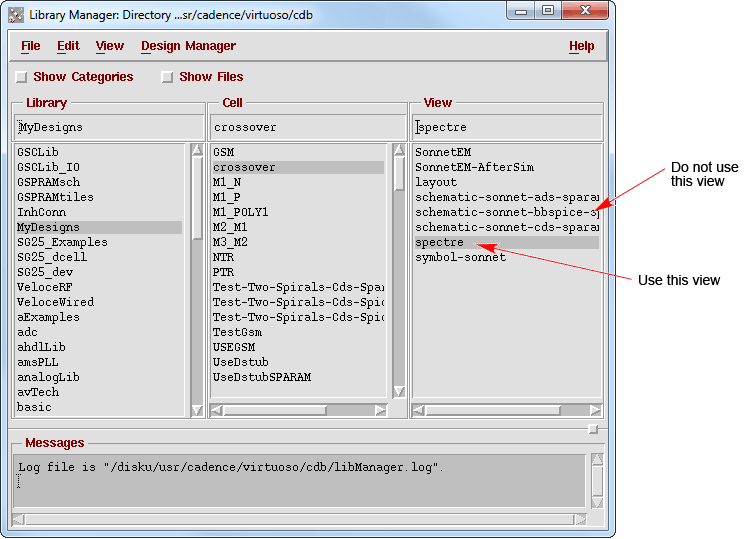
Workaround: If you are using IC5.141, please continue to use the spectre view which is also generated when using the broadband spice .scs file in ADE.
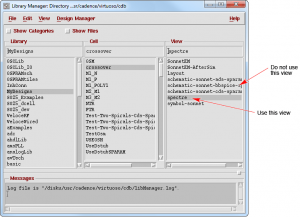
(click on screenshot to see full size)

Sonnet is working to correct this problem as quickly as possible and a patch to correct this problem should be available in the near future.

[box type=error]fixed in Sonnet 13.54[/box]

[divider]

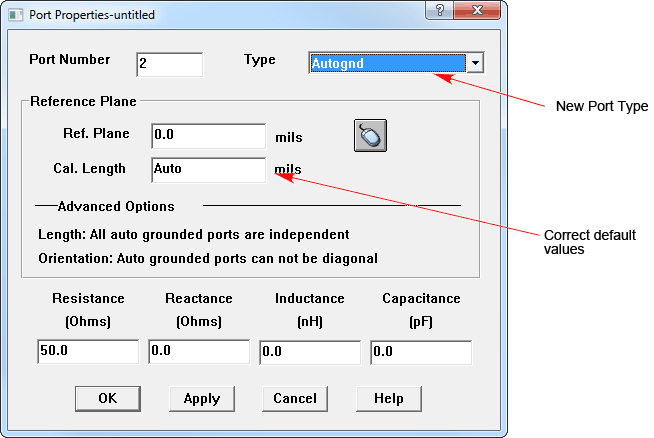
Ref.Plane and Cal. Length are initially blank when changing port types

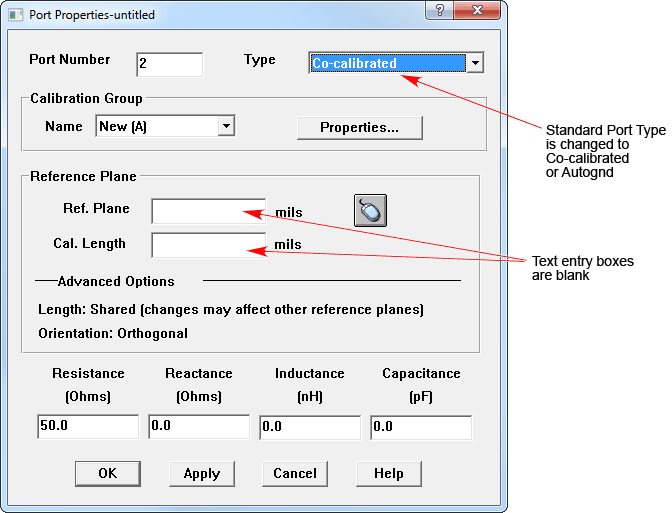
Issue: In the Port Properties dialog box, when you change the Type from Standard to either Autognd or Co-calibrated, both the Ref. Plane and Cal. Length text entry boxes are blank.
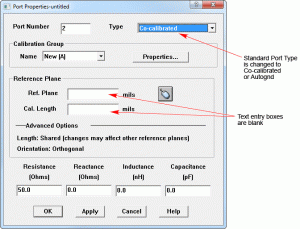
(click on screenshot to see full size)

Cause: The default values for these fields is 0.0 for the Ref. Plane and “Auto” for the Cal. Length. Due to a known bug in the project editor, these fields are initially displayed as blank. Once the dialog box has been closed and opened again, the correct values are displayed in the dialog box.

Workaround: You are not required to enter any values in this field if you wish to use the default values of no reference plane and having the calibration length automatically calculated by the software. To see the default values displayed, click on OK to close the dialog box and apply the port type change. When you re-open the dialog box, the correct values appear.
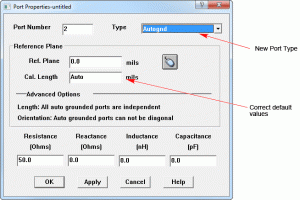
(click on screenshot to see full size)

[divider]

Font problem with remote display on Linux

Issue: Sonnet is supported for certain Linux systems (see here). When trying to access these Linux installations from a remote desktop, font related problems have been reported for some (unsupported) operating systems on the remote client. With this document, we will try to give some instructions how to possibly resolve these problems.

When trying to start the Sonnet from a remote system, using ssh -X or the Nomachine NX software or other remote terminal software, you might get this error message:

fatal: FATAL ERROR: MSG 0x0034b3ba [ Cat 3/4 STD 46010 ]
Category:  XVT release 3 assert (Signaled assert 4)
Function: xvt_app_create
File: ./kfont.c line: 838

Cause: Sonnet requires 75dpi and 100dpi fixed fonts on the client that displays the Sonnet window. By default, these fonts are missing on some systems, so that the Sonnet user interface can not be started.

Solution: On clients where the fonts are not installed be default, we have to install the missing fonts manually. This is described below for two systems. If your system is not listed, you might try  a variation of this procedure.

1. Nomachine NX client on Windows

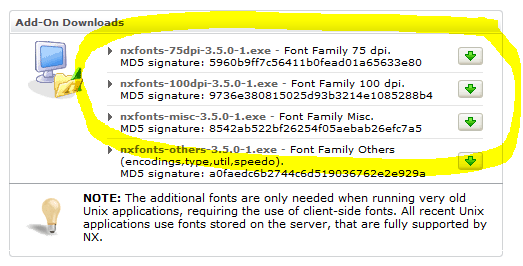
To run Sonnet remotely with the Nomachine NX client on Windows, you have to install the 75dpi and 100dpi and misc font packages that are offered as separate downloads on the NX client for Windows download page. For the NX client on Windows, this solves the Sonnet startup problem described above.
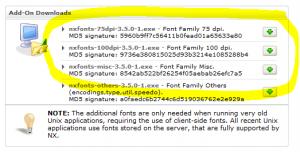
(click on screenshot to see full size)

2. Ubuntu 10.4 client with ssh -X or with the Nomachine NX client for Linux

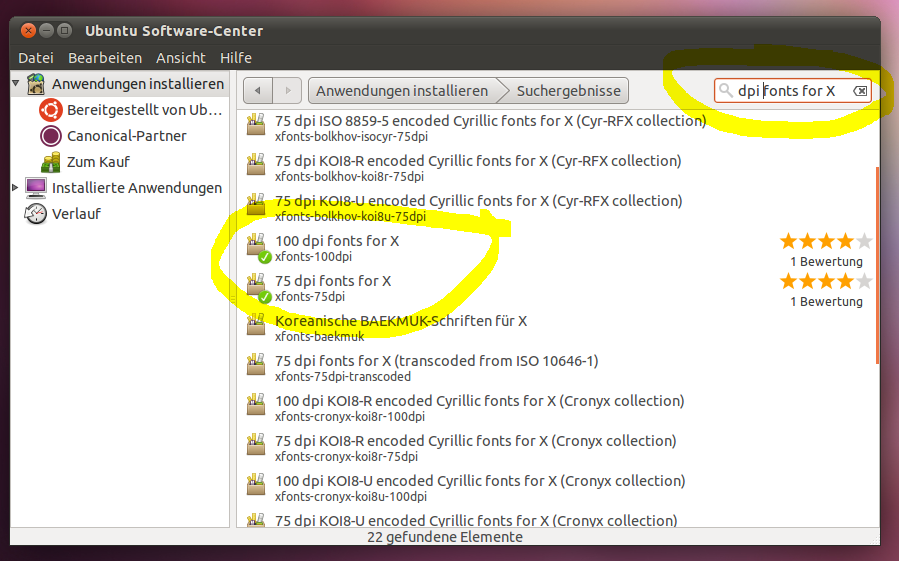
No matter if you use X forwarding or the NX client for Linux, this  Ubuntu client shows the problem described above, because the fixed fonts are not installed by default. Install the fonts from the Ubuntu Software Center. The required packages are “75dpi fonts for X” and “100dpi fonts for X”. If they are not found in the list, enable the search for “technical files” at the bottom of the window.
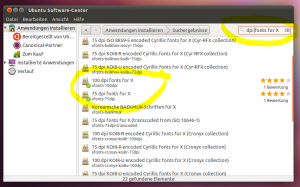
Ubuntu fonts for X

(click on screenshot to see full size)

Next, check your font path and make sure that 75dpi and 100dpi and misc unscaled fonts are included in the font path. To check your font path, open a terminal and run xset -q which will give some output like this:

Font Path: /usr/share/fonts/X11/misc/:unscaled,/usr/share/fonts/X11/100dpi/:unscaled,/usr/share/fonts/X11/75dpi/:unscaled,
/usr/share/fonts/X11/Type1,/usr/share/fonts/X11/100dpi,/usr/share/fonts/X11/75dpi,/var/lib/defoma/x-ttcidfont-conf.d/dirs/TrueType,built-ins

3. OpenSUSE 11.4 client with ssh -X or with the Nomachine NX client for Linux

This configuration works “out of the box”, the required fonts are installed by default.

[divider]

Known bugs list on the Sonnet Software website

Sonnet Software maintains a list with know bugs on their web site, which is updated when significant problems are detected.

Known bugs in the Sonnet knowledge base